
Proplix topic library
Tenancies & portals
Follow applications, onboarding and customer access with fewer loose ends.
300 guides in this topic · Browse all topics
19:44 · 13 chapters · English captions
Tenant onboarding and move-in readiness
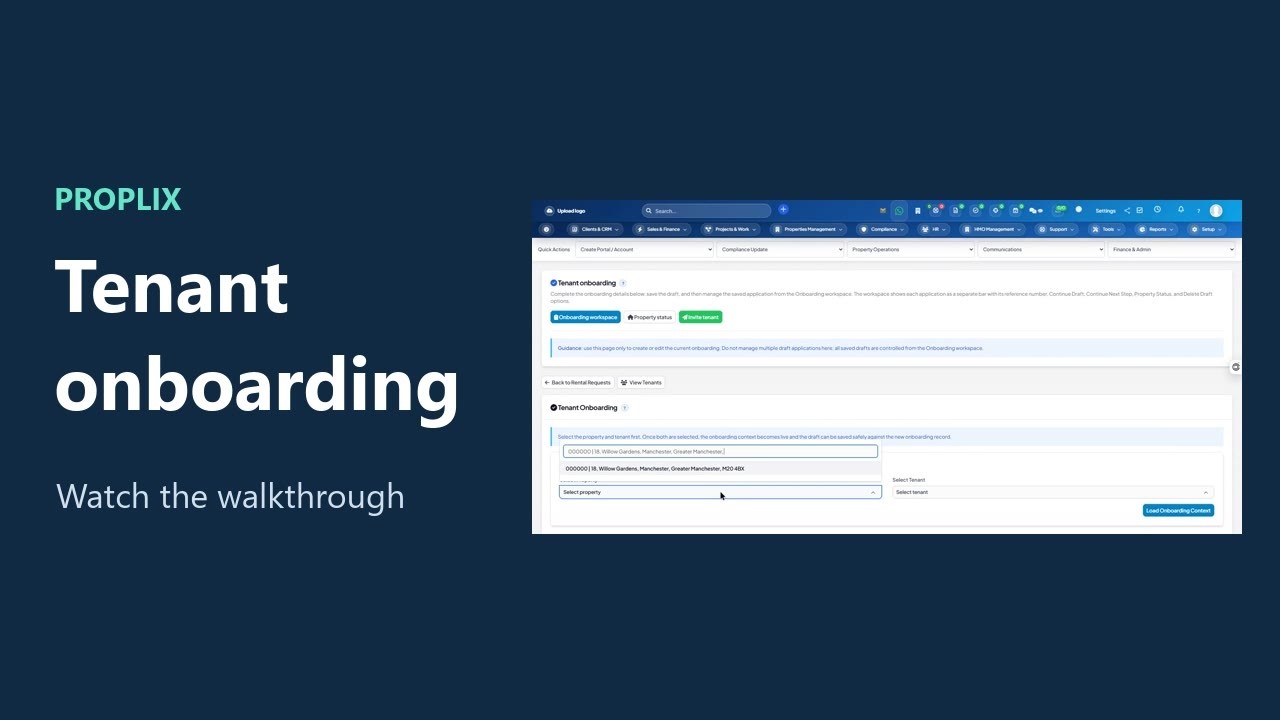
Follow the complete onboarding workflow in the live Proplix application. Start a tenant application, link the property and parties, review compliance evidence, request signatures, verify the first invoice and complete the move-in readiness review.
This walkthrough uses fictional training records, nonbinding example signatures and simulated review statuses. Follow your own evidence and approval requirements for live records.
Browse the 13 video chapters
- What this module covers
- Start an application and link the tenant
- Confirm the parties and review the workflow gates
- Deposit protection evidence
- Right to Rent evidence and training review
- Smoke and carbon monoxide alarms
- Tenant documents and the linked compliance review
- Review the amounts and send the agreement for e-signature
- Request and review the landlord countersignature
- Review the first invoice and record a training receipt
- Final pack approval and move-in readiness
- Check the tenant and landlord portals
- Related guides and next steps
Read the video transcript
This Proplix walkthrough follows tenant onboarding from a new application
to the move-in readiness check We will link the property and parties
review evidence request signatures and check the invoice and final
pack The recording uses fictional training records and simulated approvals
Open Tenant Onboarding Choose the property and the existing tenant
then load the onboarding context This binds the application to the
correct home and person Use a separate application for each tenancy
and check the names before continuing
Enter the move in and tenancy dates rent deposit holding deposit
and scheme details We are using fictional training values and a
nonbinding training template Review the figures for the selected
application then save the onboarding draft
The onboarding workspace lists the saved application with its reference
and available actions Continue the workflow from this saved record
Each stage keeps its own status and required checks can block progression
until the responsible reviewer clears them
Check the property tenant and landlord before continuing the saved
application Complete the next step then review the compliance gates
Missing evidence remains visible so the application cannot be approved
before the required checks are complete
Refresh Properties in the compliance reference index after updating
the property relationship This brings the linked tenant and landlord
details into the compliance selection lists Review the refreshed
records before returning to deposit and document evidence
Open deposit protection evidence Select the linked property or tenant
review the intake details and attach the supporting document The
example file and all recorded facts are fictional training data
Real evidence and required checks must be completed by the responsible
person before the application is approved
Complete the relevant dates reference and audit notes Confirm that
these details belong to the selected tenancy The demonstration notes
make clear that no real payment inspection identity check or document
service has taken place
Review the deposit evidence and the linked tenant Choose the evidence
type that matches the document check the scheme and dates and record
the review notes This sample is fictional no money was received
or protected Only verified evidence should be approved for a real
tenancy
After reviewing the source and recorded details approve the intake
Check the saved approval state before using the record in the tenancy
workflow
Open right to rent evidence intake Select the linked property or
tenant review the intake details and attach the supporting document
The example file and all recorded facts are fictional training data
Real evidence and required checks must be completed by the responsible
person before the application is approved
Complete the relevant dates reference and audit notes Confirm that
these details belong to the selected tenancy The demonstration notes
make clear that no real payment inspection identity check or document
service has taken place
Review the tenant check route and tenancy dates The responsible
reviewer must complete the applicable identity and document checks
and record the supported outcome The selections shown here are simulated
training values using a document clearly marked as invalid for real
use
Work through the identity comparison evidence retention and reviewer
declaration fields Set each answer from the completed check and
supporting evidence These example confirmations do not represent
an actual identity check
Use the date format configured for the workspace Check the tenancy
start and review dates then save the simulated training outcome
Verify the approval state before relying on it in onboarding No
real identity check is represented by this example
Open smoke and co alarm evidence Select the linked property or tenant
review the intake details and attach the supporting document The
example file and all recorded facts are fictional training data
Real evidence and required checks must be completed by the responsible
person before the application is approved
Compare the evidence with the inspection date outcome test method
and alarm details Record the responsible tester and review notes
These selections are simulated training values they do not certify
that an alarm was inspected Save the review before creating the
compliance record
Approve and create the reviewed training record then check its saved
status The linked tenancy workflow can now use this simulated outcome
Open tenant documents and service evidence Select the linked property
or tenant review the intake details and attach the supporting document
The example file and all recorded facts are fictional training data
Real evidence and required checks must be completed by the responsible
person before the application is approved
Complete the relevant dates reference and audit notes Confirm that
these details belong to the selected tenancy The demonstration notes
make clear that no real payment inspection identity check or document
service has taken place
Return to the onboarding workflow and review its linked compliance
snapshot This training case now shows zero hard blockers and no
soft warnings Complete the next stage to capture the current evidence
state The approval examples remain fictional training records
Check the rent deposit and holding deposit against the agreed figures
This training example uses a twelve hundred and fifty pound deposit
and a two hundred and fifty pound holding deposit The saved document
is reviewed in the following step
Recheck the form’s proposed figures before confirming the controlled
version Confirm the reviewed training draft then check the saved
financial summary and execution status The version used for signing
must match the document that was reviewed
Request the tenant signature after reviewing the confirmed version
Check that the execution state records the request and that the
tenant signature is still pending The next stage is completed by
the tenant through a secure link Verify message delivery separately
The execution status now records the tenant signature request The
tenant signature remains pending and the landlord stage is locked
Check the reviewed version and the saved balance before continuing
This training document creates no actual tenancy or payment obligation
The tenant opens their secure link and reviews the document before
signing This document is explicitly nonbinding training material
Review the parties and figures then open the signing form Enter
the signatory details and provide the signature only when authorised
The demonstration mark shown here is fictional
Submit the signature and wait for the system response The administrator
then checks the recorded tenant execution state before requesting
the landlord’s countersignature
The administrator first verifies that the tenant signature is complete
The landlord stage is now available Request the landlord’s countersignature
and check the resulting pending state Both signatory stages must
be complete before this pack can move to final review
The landlord opens their own secure request and reviews the same
controlled document Check the parties figures and tenant execution
details before countersigning Enter the authorised signatory’s name
and confirm the declaration The document and signature mark in this
example are solely for nonbinding software training
Submit the countersignature and wait for the system response The
administrator returns to the workflow to verify that both execution
stages are complete before final review
Both tenant and landlord execution stages are now complete Review
the saved execution status and the linked compliance gates before
moving the pack to review Completion of a signature stage does not
replace checking the evidence financial requirements and final approval
controls
Review the customer currency invoice lines due date and outstanding
balance This training case has a first invoice for two thousand
two hundred and fifty pounds Final onboarding approval remains subject
to its payment gate Open Payment to review the receipt fields before
recording anything
In a real account record a payment only after checking its supporting
receipt This example creates a fictional accounting entry for the
training invoice It does not move money or confirm a bank transaction
The reference and note explicitly identify it as a demonstration
and the payment email remains disabled
Review the saved payment record and its demonstration reference
Return to the linked invoice and onboarding workflow to check the
new balance and approval gate A recorded entry should always match
the evidence that supports it
The saved training receipt has cleared the invoice payment gate
Check both execution stages the current compliance snapshot and
financial balance before final approval Approve the pack only after
the responsible review is complete This demonstration uses fictional
evidence and an explicitly nonbinding document
Open Review Property Status to check the resulting onboarding position
against the property The ledger now shows Final approved stage seven
of seven and the executed agreement This is the approved fictional
training case Review the planned move in date and arrange any physical
inspection and key handover through your own operating process Final
pack approval does not prove that a real person has moved in
The tenant signs in to their own portal with access controlled by
the contact’s permissions and linked property Review the property
context and available documents or requests If information is missing
check those relationships and permissions before broadening access
The landlord’s portal brings together the property information and
decisions relevant to that account Review the linked property and
outstanding repair quote A real decision should follow a check of
scope price credentials and supporting evidence This training example
leaves the repair decision with the responsible reviewer
Read the matching written guide using the link in this video’s description
Continue with the related tutorials in the playlist Available features
depend on your plan permissions and connected services
Topic library
Tenancies & portals guides
300 guides · Showing 49–72. Search by task, field, module or question.
Change a client buy-request status
Use only portal-supported status actions.
Read the guide →Property & Compliance ManagementOpen a renter profile from a rent request
Review the customer’s suitability/evidence data linked to the request.
Read the guide →Property & Compliance ManagementOpen My Renter Profile
Maintain the current client contact’s renter data.
Read the guide →Property & Compliance ManagementUpdate renter identity and contact details
Save title, first/last name, email and phone.
Read the guide →Property & Compliance ManagementUpdate renter employment details
Choose employment_type/not_employed and supporting information.
Read the guide →Property & Compliance ManagementUpload renter identity evidence
Upload identity_document_file through the profile.
Read the guide →Property & Compliance ManagementUpload renter income evidence
Upload income_source_file and maintain income sources.
Read the guide →Property & Compliance ManagementAdd an address-history record
Enter a previous/current address history row.
Read the guide →Property & Compliance ManagementDelete an address-history record
Remove only an incorrect renter address record.
Read the guide →Property & Compliance ManagementAdd an income source
Enter income_type, amount and income_frequency.
Read the guide →Property & Compliance ManagementDelete an income source
Remove an obsolete/incorrect income row.
Read the guide →Property & Compliance ManagementAdd an occupant or person
Record another person who will live with the renter.
Read the guide →Property & Compliance ManagementDelete an occupant
Remove an occupant who should no longer be included.
Read the guide →Property & Compliance ManagementRecord pets
Complete dogs, cats, other_pets and describe_your_pets.
Read the guide →Property & Compliance ManagementRecord emergency contact
Complete emergency contact name, relationship, phone and email.
Read the guide →Property & Compliance ManagementIntroduce the renter
Enter introduce_yourself and optional file.
Read the guide →Property & Compliance ManagementCreate a rent request from the client portal
Submit a rental application/request for a visible property.
Read the guide →Property & Compliance ManagementOpen client rent-request details and PDF
Review the current client’s request and generated PDF.
Read the guide →Property & Compliance ManagementView agent/company/staff details from a property
Open the linked agent, company or staff profile pages.
Read the guide →Property & Compliance ManagementTroubleshoot a missing renter-profile section
Check client authentication, module menu registration and linked contact/customer record.
Read the guide →Property & Compliance ManagementOpen Real Estate contracts
Review core CRM contracts exposed in the broker workspace.
Read the guide →Property & Compliance ManagementCreate a Real Estate contract
Enter client, subject, value, dates/content and linked project/property context.
Read the guide →Property & Compliance ManagementEdit a Real Estate contract
Update an eligible contract’s content, visibility and value.
Read the guide →Property & Compliance ManagementLoad a contract template
Insert a supported stored contract template.
Read the guide →